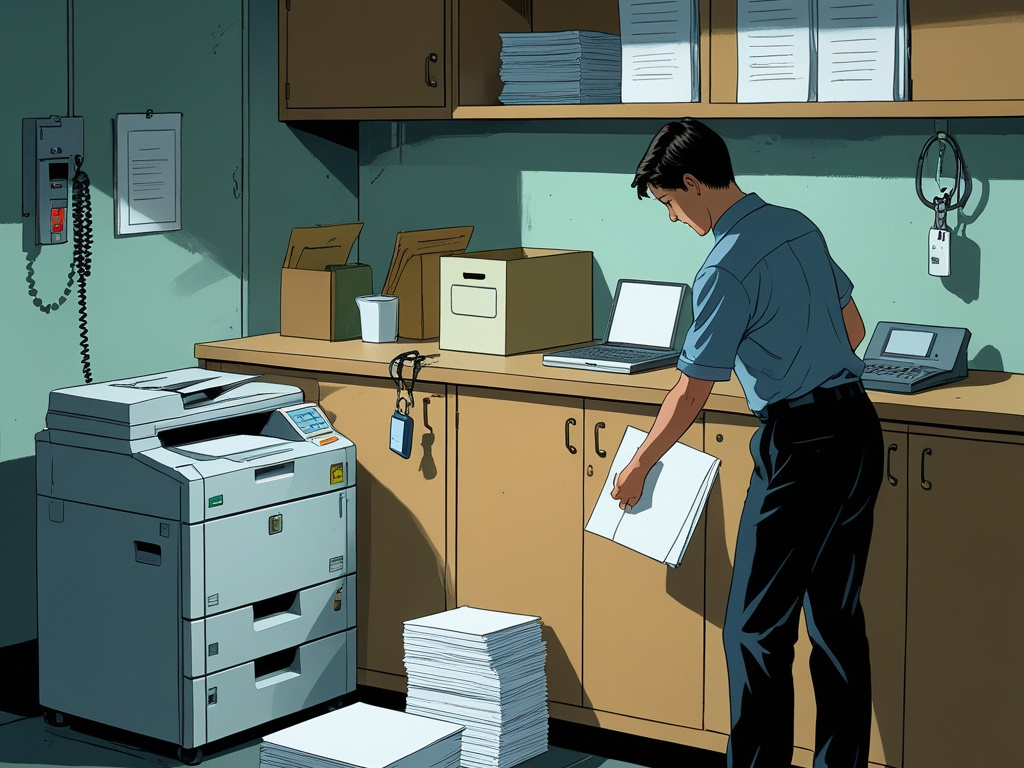
Printers and scanners still get treated like harmless office furniture.
That is a mistake. In many small businesses, the office copier quietly touches customer records, HR paperwork, invoices, contracts, visitor forms, shipping documents, and scan-to-email workflows that feed directly into the rest of the company. The device looks boring, so people assume the risk is boring too. In practice, it is one of the easiest places for document handling, guest access, weak admin habits, and forgotten network trust to pile up without much review.
That is why printer and scanner security still deserves practical attention in 2026. The goal is not to make everyday printing painful. The goal is to stop one shared office device from becoming the place where sensitive paperwork sits unattended, default credentials linger for years, and old convenience settings keep more access alive than anyone intended.
Key Takeaway: Small-office printer security is less about exotic device hacking and more about controlling who can print, scan, collect, configure, and physically reach business documents in the first place.
Why this still matters now
Most small teams moved a lot of security energy toward SaaS, browsers, MFA, and endpoint tools. That was the right direction. But it also left some older office infrastructure running on autopilot.
A typical printer or scanner in a small office may now sit at the intersection of:
- Wi-Fi and local network trust
- scan-to-email or cloud-storage workflows
- guest or vendor physical access
- copied IDs, contracts, payroll papers, and onboarding documents
- admin panels that almost nobody checks after setup
- leftover hard drives or internal storage that retain document data
That mix makes the topic more current than it sounds. The same company that rolls out stronger password manager and MFA habits, cleaner SaaS admin basics, and better endpoint hygiene can still leak sensitive information through one neglected multifunction device in the copy room.
Common Mistake: Treating the printer as a low-risk appliance because it is not where employees log in all day. In reality, it often handles some of the most sensitive paperwork in the building.
Where small offices usually leave risk behind
The pattern is familiar.
Someone sets up the printer quickly so work can move. Default settings stay in place. Scan-to-email gets configured with broad access. Old staff and outside IT providers keep admin rights because nobody wants to break anything. Printed documents sit in trays while people are in meetings. Guests, delivery workers, and contractors pass through common areas without much thought. Years later, the device has become part of the security perimeter even though nobody talks about it that way.
Common weak spots include:
- printer admin passwords never changed from setup defaults
- scan destinations tied to overpowered email accounts or shared folders
- open walk-up printing from devices that should not be trusted
- printed HR or finance papers left unattended
- copier storage never cleared before replacement or disposal
- devices placed in semi-public areas with loose visitor access
- guest Wi-Fi or unmanaged devices reaching printer services they do not need
None of those failures sounds dramatic on its own. The problem is how normal they all feel.
The practical checklist
Small offices do not need a giant fleet-management project to improve this. They need a short set of controls that match how people actually print, scan, and collect paperwork during a busy week.
1. Decide which documents should never sit unattended in a tray
This is the fastest operational fix and one of the most useful.
Make a plain list of document types that should not be left waiting at the device:
- payroll and HR paperwork
- customer records
- contracts and legal documents
- invoices and payment details
- copied IDs, passports, or onboarding forms
- medical or regulated records where applicable
Then make the workflow match the rule. If a document is sensitive enough to matter, the person printing it should be ready to collect it immediately.
That sounds obvious, but a lot of leakage happens because nobody defined which paperwork counts as sensitive in the first place.
2. Change admin credentials and document who owns them
Many office printers still run on the setup logic of "we will change that later."
Do not leave the device admin interface on a default or widely known password. Just as important, do not let the only login live in one person's memory or an old email thread.
A safer baseline looks like this:
- unique admin password stored in the approved company password manager
- named internal owner for the device
- documented support contact if an MSP or vendor helps manage it
- removal of old admin users or vendor access that no longer serves a purpose
This overlaps directly with admin access at work and vendor access risk. The issue is not only whether the device has an admin panel. It is whether anybody still knows who can change it.
3. Review scan-to-email and scan-to-folder settings like real access paths
Scan workflows often get treated like convenience features. They should be treated like data routes.
Check:
- which mailbox or account the device uses to send scanned files
- which shared folders it can write into
- whether that account has more access than it needs
- whether scanned documents are copied somewhere unexpected
- whether old destinations still exist from previous staff or projects
If a printer can send documents into a broad mailbox, shared drive, or legacy folder, then the device is effectively part of your information-routing system.
That is one reason this topic belongs beside business email security, secure file sharing at work, and shared inbox security. The weak point is often not the printer itself. It is where the printer is allowed to send information after somebody presses one button.
4. Put the device on the right network, not the easiest one
Many small offices let printers inherit broad local trust because it is convenient during setup.
That deserves a second look.
Printers usually do not need the same reach as employee laptops, guest phones, or random IoT devices. Where your setup allows it, place the device in the managed office network segment that makes sense for business equipment and keep it away from guest access by default.
At minimum, review whether:
- guest Wi-Fi can see or print to office devices
- unmanaged personal devices can discover the printer
- printer services are exposed more widely than necessary
- remote admin is enabled without a good reason
This connects naturally to guest Wi-Fi security and secure remote work setup, even though the environment is physical rather than remote. The lesson is the same: proximity should not create automatic trust.
5. Keep the device firmware and security settings current
Office devices rarely get the same update discipline as laptops and browsers.
That creates slow-moving risk. Even if you are not expecting a headline exploit against your exact printer model, old firmware and old defaults tend to travel together. When something is neglected for years, you should assume more than one security control got missed.
Review:
- firmware version and update path
- whether unnecessary protocols are still enabled
- whether secure admin access options are available
- whether the device keeps old services active for compatibility reasons nobody needs anymore
Small offices do not need to become printer specialists. They do need a calendar reminder that this device exists and should not stay frozen forever.
6. Use secure release or similar controls for high-sensitivity printing when possible
Not every small office needs badge-based print release. Some do.
If your environment frequently prints regulated, financial, legal, or HR materials, it is worth checking whether the device or print system supports a basic release step so documents do not print until the user is physically present.
That is especially useful for:
- shared office floors
- coworking environments
- front-desk or reception-adjacent devices
- teams printing employee or customer records regularly
You do not need to turn every print job into ceremony. You do need a better answer than "we hope the right person gets there first."
7. Treat copier location as a security decision, not just a facilities one
Where the device sits changes how much trust it receives.
A printer near a public lobby, reception desk, or shared hallway creates a different risk profile than one in a more controlled interior workspace. If visitors, candidates, vendors, or delivery staff can hover near the output tray or scanner glass, the office has created a document exposure issue even if the device itself is configured correctly.
Review whether the printer location allows:
- casual viewing of collected documents
- easy access to printed paperwork during meetings or lunch
- copying or photographing pages by unauthorized people
- access to device ports, storage, or admin reset buttons
This is where the topic overlaps with office badge security and tailgating. Physical access often becomes the easiest way to exploit a digital weakness that was already sitting in the open.
8. Clear out abandoned address books, stored jobs, and old destinations
Printers accumulate memory just like other systems do.
That can include:
- old scan destinations
- saved contact lists
- stored print jobs
- fax or email address books
- cached user settings
If the device has been through staff turnover, vendor changes, or office moves, assume some of that old state no longer belongs there.
This is one of the least glamorous review tasks in office security, but it is exactly the kind of cleanup that prevents awkward data leakage later.
9. Write one short rule for staff about printing, scanning, and sensitive paperwork
People do better with a simple operating rule than with a giant policy nobody reads.
For example:
- collect sensitive print jobs immediately
- do not scan confidential documents to personal email
- use approved scan destinations only
- report strange printer prompts or device behavior to IT
- shred or secure discarded paperwork instead of leaving it in open recycle bins
That rule covers most of the normal failure modes without turning the copy room into a training exercise.
10. Include printers and scanners in offboarding, replacement, and disposal workflows
Device security does not end when the hardware stops being useful.
Before a printer is retired, returned, sold, or replaced, check whether it stores:
- address books
- admin credentials
- saved jobs
- scan history
- internal storage containing document data
Then make sure reset and disposal steps are explicit.
This is similar to the lesson in employee offboarding security: if cleanup only covers laptops and accounts, important leftovers remain behind in the systems nobody remembers until too late.
Pro Tip: If your office has upgraded printers over the years, verify that the old one was actually reset before it left the building. Many organizations are less certain about this than they think.
What a sensible first month looks like
If your office has never reviewed this area, do not overcomplicate it. A practical first pass is enough:
- change admin credentials and store them properly
- review scan-to-email and shared-folder destinations
- make sure guest access cannot reach the device unnecessarily
- move or monitor the printer if it sits in a semi-public area
- create a simple staff rule for collecting and shredding sensitive documents
That work alone closes a surprising amount of risk.
Final takeaway
Printer and scanner security still matters in 2026 because office document workflows never really went away. They just stopped looking modern enough to attract regular attention.
For small offices, the right response is not fear and it is not overengineering. It is a short discipline: know who can configure the device, know where scanned files go, keep guests and unmanaged devices out of the trust path, and stop sensitive paperwork from sitting around like nobody owns it. That is how a copier stays a tool instead of quietly becoming a leak point.