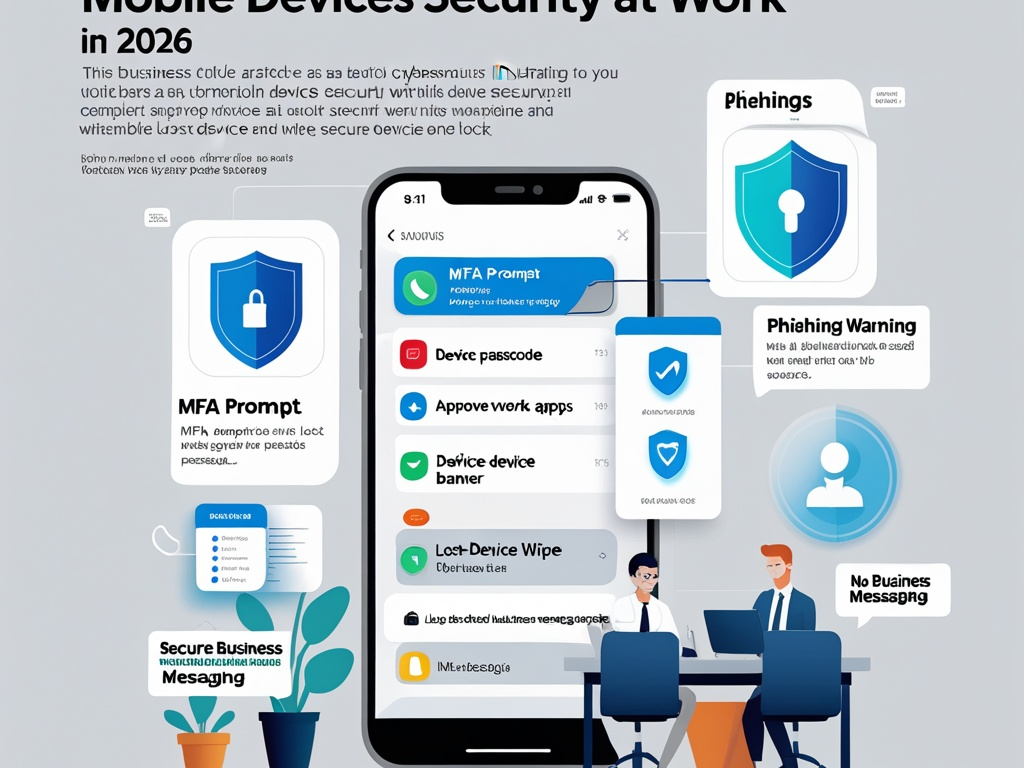
Phones have become part of the business security stack whether companies planned for that or not.
Employees approve MFA prompts on them, read email while traveling, answer customer messages after hours, join meetings, open file links, access password managers, and sometimes administer SaaS tools from a six-inch screen while moving too fast to notice what looks off. For many small teams, the phone is no longer a side device. It is part of the control plane.
That is why mobile device security at work deserves more attention in 2026. The risk is not only stolen phones. It is rushed approvals, mixed personal and work use, weak recovery paths, unmanaged messaging apps, stale operating systems, and sensitive business access sitting on the device people are least likely to review carefully.
Key Takeaway: Small teams do not need a heavyweight mobile program to reduce risk. They need a clear baseline for screen locks, updates, app trust, account recovery, and what employees should do when a phone is lost, replaced, or acting strangely.
Why mobile risk feels bigger now
Many businesses still think of laptops as the serious devices and phones as convenience tools.
That split no longer matches how work happens. Phones now handle:
- MFA approvals and passkey prompts
- business email and calendar access
- password manager unlocks
- chat and collaboration threads
- file-sharing links and document previews
- customer support or CRM notifications
- SaaS admin actions in a pinch
That means a weak phone posture can undermine controls that look stronger everywhere else. A company may have decent laptop hygiene, solid identity policies, and careful SaaS admin settings, then let all of it blur together on a personal phone with weak unlock settings, too many apps, and no clear lost-device plan.
This is why the topic belongs beside recent Hexon companion coverage like business email security, browser hygiene at work, endpoint hygiene, and password managers and MFA rollout. The shared problem is simple: business trust keeps moving to whichever device is fastest in the moment.
The practical checklist
You do not need to solve every mobile problem in one month. Start with the controls that remove easy attacker wins and lower the cost of a lost or compromised phone.
1. Decide which phones are allowed to hold work access
Many small teams drift into mobile access by default.
Employees install email, chat, and MFA apps on whatever phone they already own, and nobody stops to define the baseline. That is manageable only until a device is lost, jailbroken, out of date, shared with family members, or loaded with risky apps.
At minimum, decide:
- whether personal phones are allowed for work access
- which operating system versions are still acceptable
- which work apps are approved
- which high-risk roles need a stricter device baseline
- who can approve exceptions
This does not have to be a giant BYOD policy. Even a short written baseline is better than pretending every phone is equal.
2. Require a strong screen lock and keep it boring
If a phone holds business email, MFA, password-manager access, or sensitive chat, the lock screen is not a cosmetic setting.
Use a baseline people can actually follow:
- require a real passcode or strong biometric plus passcode fallback
- keep auto-lock reasonably short
- disable casual sharing of unlocked work devices
- do not let convenience habits override the lock requirement
This is basic, but it matters because a surprising number of business incidents still start with a phone left in a rideshare, on a table, or in a pocket somebody else can reach.
Common Mistake: Teams think mobile risk starts only when malware appears. In practice, weak local access control still creates plenty of avoidable exposure.
3. Treat mobile OS updates as security deadlines, not optional cleanup
Phones are often better patched than laptops until they are not.
Employees postpone updates because they are busy, traveling, low on battery, or worried an app might behave differently after restart. Over time, the device holding business sessions, passkeys, and recovery prompts becomes the least current endpoint in the company.
Your baseline should be simple:
- automatic OS updates turned on
- app updates enabled for approved work apps
- unsupported devices removed from work access
- replacement plans defined before a device falls too far behind
This matters especially for smaller teams where there is no dedicated mobile operations function catching drift.
4. Separate approved work apps from everything else
Most phone risk is not about one dramatic compromise. It is about trust mixing too freely.
A work phone or work-enabled personal phone may contain:
- personal messaging apps
- shopping and payment tools
- consumer AI assistants
- unknown QR scanner apps
- random document viewers
- old VPN or helper apps nobody remembers installing
That is why companies should define which apps matter for work and which ones should stay out of the trust path.
For example:
- use the approved mail and calendar app where possible
- prefer the approved password manager over copy-paste storage habits
- avoid unofficial QR, PDF, keyboard, and browser helper apps
- review whether consumer AI apps should be allowed to touch work content
This overlaps directly with safe AI use at work and shadow SaaS. A phone is one of the easiest places for unsanctioned tools to become normal before anybody reviews them.
5. Be stricter about MFA prompts on phones than users want you to be
Phones are where many employees make their fastest trust decisions.
That includes:
- approving a login while distracted
- accepting a passkey prompt without checking the context
- reacting to repeated push notifications just to stop the noise
- resetting a password from a mobile email link in a hurry
If your team relies on phones for sign-in, teach one rule clearly: a prompt is not routine just because it appears on a familiar device.
Employees should know to pause when:
- they were not actively logging in
- the prompt arrives repeatedly
- the location, app, or timing looks wrong
- the request follows a suspicious email or message
This is one reason mobile security and identity security belong in the same conversation. The phone is often the final approval surface.
6. Reduce how much admin work happens from phones
Not every business task belongs on mobile.
Plenty of risky actions are easier to misread on a small screen:
- changing account recovery settings
- approving third-party app access
- editing payment details
- reviewing permission scopes
- managing DNS, SaaS admin, or cloud settings
The safer default is not "never use phones for work." It is "reserve high-impact admin changes for a larger, more deliberate environment unless there is a real exception."
If a role must handle sensitive admin tasks from mobile, document that explicitly and give that role a stricter device baseline than the average employee.
7. Make lost-device response a real process, not a panic exercise
Every team says they would react quickly if a phone disappeared. Many have never written down what "quickly" means.
A usable lost-device plan should answer:
- who gets notified first
- how work email and chat sessions get revoked
- how the phone is remotely locked or wiped if supported
- how MFA and recovery methods are re-established on a replacement device
- which high-risk accounts need immediate review after loss
If this sequence is not documented, people improvise under stress. That usually means delay, confusion, or missed access paths that stay live longer than they should.
Pro Tip: Treat a replaced phone the same way you treat a recovered phone after a scare. Review sessions, recovery methods, trusted devices, and work apps instead of assuming the migration handled everything safely.
8. Clean up business messaging and file access on mobile
Sensitive work rarely stays inside email alone anymore.
Phones may hold access to:
- Slack, Teams, or similar chat platforms
- customer messaging tools
- shared file links
- support notifications
- CRM or ticketing systems
That makes mobile security partly a messaging and document-access question. Review whether:
- employees are using the approved chat apps
- link previews expose more data than expected
- downloaded files linger on personal phones unnecessarily
- old sessions stay active after role changes or departures
- sensitive files are being opened in unapproved apps
This complements the same practical concerns covered in secure file sharing at work. On phones, the tradeoff between convenience and control usually gets sharper.
9. Review mobile access during onboarding and offboarding
Mobile setup is often ignored until after the more visible account work is done.
That is backwards. When employees join, change roles, or leave, the phone deserves specific attention:
- which work apps are installed
- where MFA and passkeys are registered
- which chat and mail sessions remain active
- whether the device still meets the baseline
- whether a personal phone keeps access after departure
This fits closely with cybersecurity onboarding. If mobile access is added casually during onboarding, it becomes harder to audit and revoke later.
10. Publish a short mobile security baseline employees can remember
Most companies do not need a thirty-page mobile policy. They need a short list employees can actually follow.
For many small teams, that baseline can be:
- Keep your phone updated.
- Use a strong screen lock.
- Install only approved work apps for business access.
- Do not approve unexpected MFA prompts.
- Report a lost or replaced phone immediately.
- Keep high-risk admin work off mobile unless explicitly allowed.
That is a much more useful control than vague advice to "be careful on your phone."
What small teams should do first this month
If your current mobile posture is loose, start here:
- inventory which phones currently hold work email, chat, and MFA access
- set a minimum OS and screen-lock baseline
- remove work access from clearly outdated or noncompliant devices
- define the lost-device response sequence
- review which sensitive admin actions should move back to laptops
That will not create perfect mobile security. It will remove several of the easiest failure paths quickly.
Final thought
Mobile device security matters because the phone is often where trust gets compressed into one fast tap.
It is where users approve logins, read urgent requests, open links, recover access, and carry business sessions outside the office and beyond the workday. For small teams in 2026, the goal is not turning every phone into a locked-down enterprise brick. It is making sure the business can trust the device enough for the work it is actually doing.
Get the basics right, define what belongs on mobile, and rehearse what happens when a device is lost or replaced. That is how you keep convenience from quietly becoming control loss.