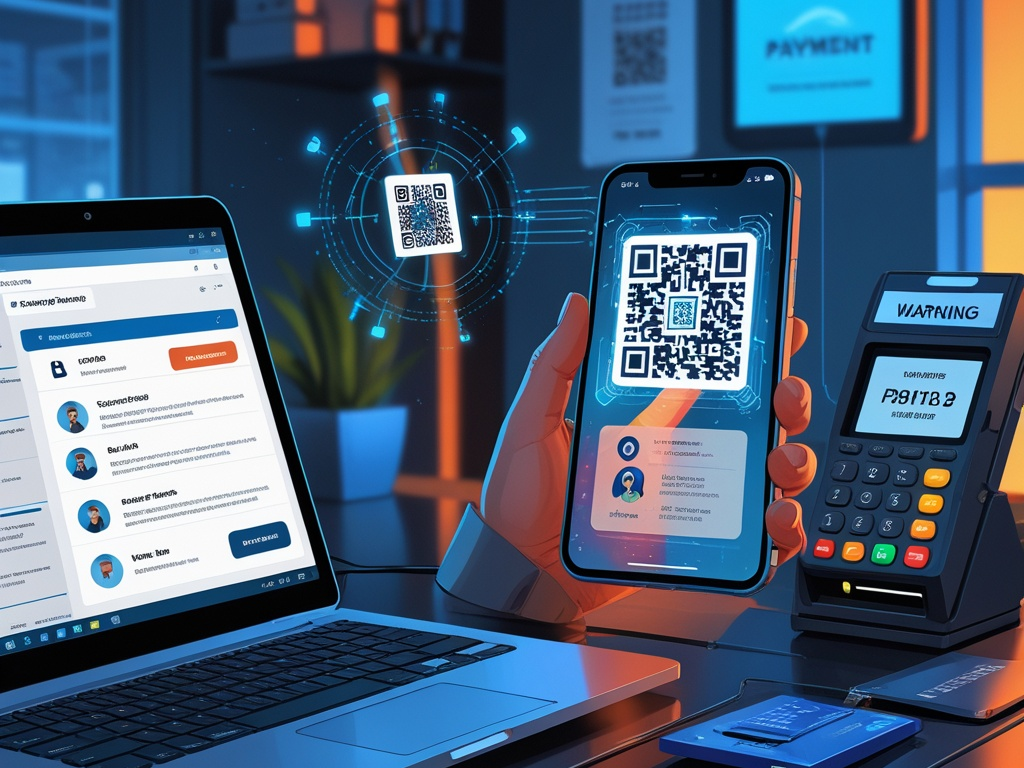
QR codes are now part of normal work life.
Employees scan them to join guest Wi-Fi, log in to apps, open invoices, confirm parking, access building information, pull up event agendas, and pair mobile devices with business tools. That convenience is exactly why QR code scams, often called quishing, have become more useful to attackers.
The problem is not that QR codes are new. The problem is that they move the trust decision onto a phone, hide the destination until after the scan, and make rushed verification feel normal.
That is why business QR code scams deserve their own security checklist instead of being treated like a minor footnote inside general phishing advice.
Key Takeaway: Small teams do not need to ban QR codes to reduce quishing risk. They need a short set of rules for where QR codes belong, which actions should never rely on a scan alone, and how employees should verify a code before trusting it.
Why QR scams matter more at work now
For years, QR codes sounded like a consumer issue. Fake parking stickers. Restaurant scams. Suspicious package notices.
In 2026, that is too narrow.
Workplaces now use QR codes for:
- guest Wi-Fi onboarding
- identity and app sign-in flows
- device pairing
- event and conference materials
- invoices, menus, and payment pages
- office posters, badges, and facility instructions
- document sharing and mobile approvals
That makes the QR code a business trust surface, not just a convenience feature.
This also explains why the topic belongs beside recent Hexon companion posts on business email security, mobile device security at work, guest Wi-Fi security, and business text message scams. The common problem is not only phishing. It is that too many important work actions now start on a phone screen with very little context.
What business quishing usually looks like
Not every QR-based attack is especially technical. A lot of it is simple social engineering wrapped in a format people have been trained to trust.
Common patterns include:
- fake sign-in QR codes placed over legitimate posters or desks
- QR codes in phishing emails that push the user from laptop caution to phone improvisation
- office guest Wi-Fi signs replaced with attacker-controlled destinations
- invoice or payment QR codes that redirect funds
- event and conference codes that land on fake login pages
- building, parking, or delivery codes that ask for business credentials
- QR prompts that try to enroll a device, pair an app, or capture MFA-adjacent steps
The reason this works is simple. A QR code does not look like a suspicious URL. It looks like a shortcut.
Common Mistake: Teams warn employees about suspicious links in email, then treat QR codes as if they are not links at all.
The practical checklist
The goal is not to create fear around every code on a wall. The goal is to decide which business actions deserve more friction before an employee scans first and thinks later.
1. Decide which business actions should never depend on a QR scan alone
This is the most valuable baseline.
A small team should be able to say clearly that some actions always require a second check, even if the QR code appears in a familiar place.
That list usually includes:
- entering work credentials
- approving MFA or device enrollment
- changing payment details
- paying invoices
- downloading new software or mobile apps
- joining an unfamiliar Wi-Fi network
- sharing sensitive business documents
- granting vendor or contractor access
If the business has not written this down, the employee is left to improvise while standing in a lobby, parking lot, conference hall, or office kitchen.
2. Treat QR codes as hidden links, not as neutral images
This sounds obvious, but it changes behavior.
On a laptop, employees can often hover over a link or inspect the sender context before clicking. On a phone, the QR code skips that habit and turns the scan itself into the first trust decision.
Useful rules:
- preview the destination before opening it when the phone allows that
- do not sign in to a business account from a QR destination unless the workflow is expected and verified
- type the known domain directly if the request touches email, payroll, SSO, banking, or admin access
- avoid using a QR code as the only way to confirm a problem or complete a payment
This is less about technical purity and more about reducing blind trust in a format that hides the destination by design.
3. Review every business place where QR codes are already normal
Quishing defense gets easier when the team knows where QR codes legitimately appear.
For many small businesses, that includes:
- reception or guest check-in areas
- conference rooms
- visitor Wi-Fi signs
- payment counters
- warehouse and delivery areas
- printed event materials
- employee onboarding documents
- support emails or vendor documentation
Once you know where the codes live, you can ask better questions:
- who owns the sign or poster
- how often is it reviewed
- could someone replace it physically
- does the code lead to a domain the business actually controls
- would the same workflow be safer through a typed URL or managed app
The core point is that QR security is partly physical security and partly workflow security.
4. Be stricter with QR-based sign-ins than with normal links
Attackers like QR codes because they move users away from desktop guardrails.
An employee may ignore a suspicious link in email, then scan the same destination from a phone because it feels like a separate workflow. That split attention is useful to attackers.
Safer defaults:
- do not log in to Microsoft 365, Google Workspace, payroll, banking, or admin systems from a surprise QR prompt
- if a desktop app says to scan a code, verify the app and the expected domain first
- if an email contains a QR code for sign-in, treat it as a phishing candidate until proven otherwise
- if the process is legitimate, open the known service directly rather than trusting the code as the only path
This overlaps directly with MFA prompt fatigue and account recovery security. Attackers do not need perfect malware when they can get a user to volunteer trust through a normal-looking login flow.
5. Do not let guest Wi-Fi onboarding become an identity trap
Guest Wi-Fi QR codes are convenient, and that convenience creates risk.
Many teams now print a code for visitors, staff overflow devices, contractors, or event attendees. That is fine if the code is managed well. It becomes risky when nobody owns the sign, the password never rotates, or employees get used to scanning any nearby network shortcut without verifying it.
Good baseline rules:
- keep guest Wi-Fi separate from internal business systems
- rotate guest access on a predictable schedule
- assign one owner for printed Wi-Fi signs
- replace damaged or suspicious signage quickly
- tell employees not to treat QR-based Wi-Fi onboarding as proof the network itself is trustworthy
This is why guest Wi-Fi security and quishing defense belong together. The attack is not only the fake code. It is the false sense of legitimacy that comes from scanning something posted in a real office.
6. Put extra friction on invoice and payment QR codes
QR-based payments are now normal enough that many people stop questioning them.
That creates an obvious opening for fraud in:
- invoices
- vendor payment requests
- event booths
- parking and travel reimbursement situations
- printed signs near a register or front desk
Useful rules:
- never change banking details because a new invoice QR code says to
- confirm high-value payments through a known contact or approved finance workflow
- compare the vendor name, domain, and invoice context before paying
- treat stickers placed over existing payment codes as suspicious by default
This is especially important for small teams because the person scanning the code may also be the person authorized to move money.
Pro Tip: If a QR payment or invoice path cannot be explained clearly in the normal finance process, it should not be treated as normal just because it works on a phone.
7. Teach employees what to notice before they scan
Most quishing awareness should happen before the camera opens.
Teach people to slow down when:
- the code appears as a sticker placed over another sign
- the request is urgent or unusual for that location
- the sender wants them to move from laptop to phone quickly
- the code claims to fix account, billing, or security issues
- the sign includes spelling mistakes, inconsistent branding, or a generic explanation
- the workflow asks for business credentials unexpectedly
- the code is the only way to complete a task that should have another official path
The lesson is not "spot every fake code." The lesson is "recognize which actions deserve friction before the scan."
8. Give employees a default response after a suspicious scan
People make better decisions when the safe next step is obvious.
A small business can reduce a lot of risk with one standard response:
- Stop before signing in or entering payment details.
- Do not approve MFA or enroll a device from that page.
- Close the page and open the known service directly.
- Report the code or message if it touched work accounts, money, or sensitive data.
That is easier to remember than a long anti-phishing lecture, and it works in the moment when the user feels rushed.
9. Audit vendor and event QR use before it becomes normal
Third parties create a lot of avoidable QR trust problems.
A landlord posts a building code. A conference organizer sends a session badge. A payment vendor updates a countertop placard. A contractor prints a setup sheet with a pairing code. A delivery partner attaches a label that routes the employee toward a fake portal.
Before treating those workflows as normal, ask:
- who created the code
- what domain it resolves to
- whether the business approved that workflow
- whether there is a safer alternative
- who would notice if the printed code changed next week
This matters because QR codes often bypass the usual review path. They show up as a physical object, a PDF, or an event detail, not as a new security request.
10. Keep business phones and mobile browsers predictable
QR scams succeed more easily when the phone itself is messy.
If the mobile browser is cluttered, the device runs random QR helper apps, or the user has weak lock-screen settings, the business is already giving up control before the scan happens.
That is why quishing defense works better when it sits next to mobile device security at work and endpoint hygiene for small businesses. The workflow may begin with a code, but the real security boundary is still the device.
Good baseline habits:
- keep the phone updated
- avoid unofficial QR scanner apps when the camera already handles scans
- keep work sign-ins inside approved apps and browser profiles where possible
- do not save sensitive credentials into random mobile prompts for convenience
11. Review physical spaces as part of phishing defense
A lot of teams still treat phishing as an email-only problem. QR scams expose why that is outdated.
If an attacker can tamper with a sign in a lobby, reception area, shared office, coworking floor, warehouse, or event booth, the phishing surface is now partly physical. That means:
- checking posted codes during normal facilities walkthroughs
- removing old or duplicate signs
- replacing paper signs that are easy to cover with stickers
- using shorter review cycles for public-facing codes
- making it clear which posted codes are official
This is simple operational work, but that is exactly why it gets skipped.
12. Write a short QR rule into the company policy
You do not need a long policy for this.
A small team usually needs three or four durable rules, such as:
- Treat QR codes like links.
- Do not sign in to work accounts from a surprise QR prompt.
- Do not trust payment or invoice QR changes without verification.
- Report suspicious office, email, or event QR codes that touch work systems.
That is enough to turn QR defense into a repeatable habit instead of a one-time warning.
What a right-sized small business rollout looks like
If the business wants a realistic first pass, start here:
- Inventory where official QR codes are used.
- Remove or replace anything outdated, duplicate, or ownerless.
- Define which workflows should never rely on a scan alone.
- Brief employees on the default suspicious-scan response.
- Review guest Wi-Fi, payment, and sign-in QR paths first.
That is already enough to reduce a surprising amount of risk.
Final thought
Business QR code scams in 2026 are not a weird edge case. They are what happens when convenience, phones, and hidden destinations collide inside ordinary work.
Most teams do not need to ban QR codes. They need to stop treating them as harmless images and start treating them as compressed trust decisions.
That shift is small, practical, and worth making before the next fake sign-in page or payment code turns a quick scan into a preventable incident.