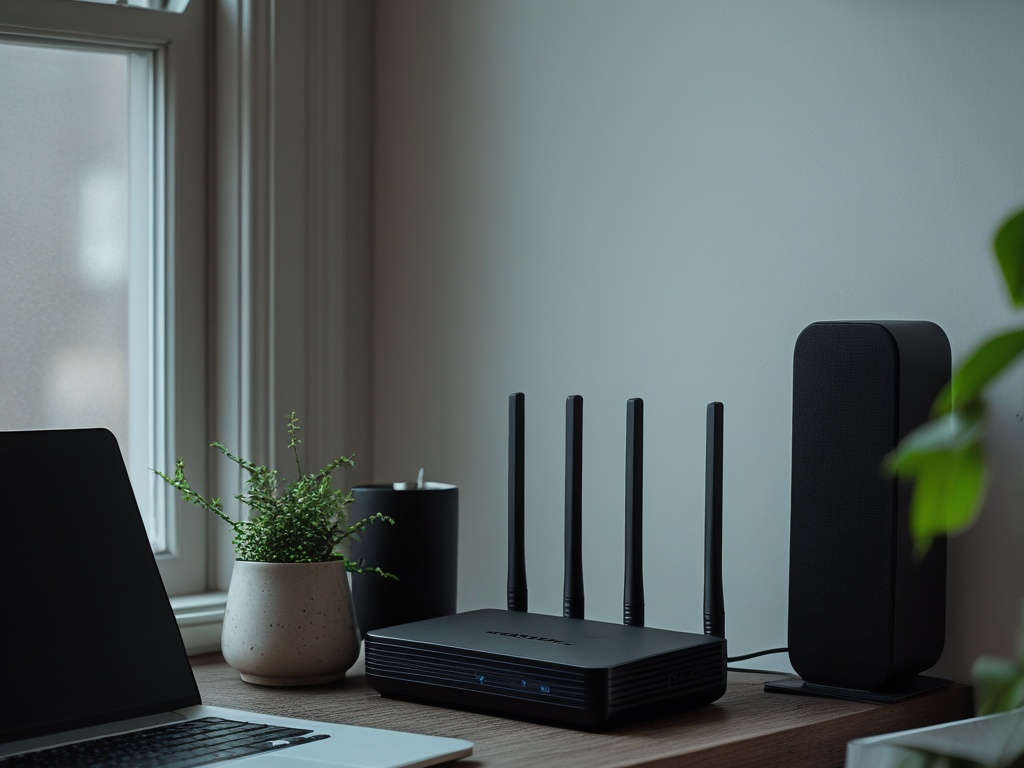
Remote work security often gets discussed like a laptop problem, a VPN problem, or an identity problem.
That is incomplete. In 2026, the home router is part of the business security boundary whether companies want to admit it or not.
For many employees, the same network that carries work traffic also carries smart TVs, doorbells, game consoles, personal phones, tablets, printers, and a growing pile of inexpensive connected devices with uneven patch quality. If that environment is weak, the company does not just inherit endpoint risk. It inherits a local trust problem sitting underneath the endpoint.
Small teams feel this especially hard. They usually do not control employee home networks directly, but they still depend on them every day for meetings, admin access, cloud apps, and sensitive conversations. That means the goal is not turning every home into an enterprise branch office. The goal is getting the basics right so a messy home network does not become the easiest route into work.
Key Takeaway: A secure remote-work setup starts one layer earlier than many teams think. If the home router is weak, the work laptop is starting from a worse position before the user even opens a browser.
Why home router security matters more now
Remote work is no longer a temporary exception. It is normal operating infrastructure.
That changes the standard. A home network used for work should not be treated like a private lifestyle detail that sits outside security review. It is not fully controllable, but it is absolutely relevant.
Here is why this topic keeps getting more important:
- more employees use personal internet connections for regular access to business apps
- more homes now contain dozens of connected devices competing for trust on the same network
- more sensitive work happens over browser sessions, voice calls, file sharing, and SaaS admin actions from home
- more attackers look for the easiest weak point instead of the most sophisticated one
This also fits a wider pattern across Hexon's practical coverage on browser extension security, guest Wi-Fi security, secure file sharing, and endpoint hygiene for small businesses. Different surfaces, same lesson: convenience quietly expands trust unless somebody narrows it on purpose.
The practical checklist
You do not need every employee to become a network engineer. You need a short set of remote-work controls that are realistic to explain, verify, and repeat.
1. Identify what router actually runs the home network
This sounds trivial, but it is often not.
People may have:
- an ISP-provided gateway
- a separate Wi-Fi router behind that gateway
- a mesh Wi-Fi kit
- an old extender still broadcasting
- a second personal hotspot used part time for work
If nobody knows which device actually controls Wi-Fi, admin settings, firmware, and DNS behavior, every later step gets sloppy.
For remote staff, ask for a basic inventory:
- router or mesh brand and model
- who manages it
- whether ISP equipment is still using default settings
- whether old networking gear is still plugged in
- whether work devices ever join a personal hotspot instead
Common Mistake: Teams write remote-work guidance for laptops and MFA but never define what "home network" means in practice. That leaves users hardening the wrong box.
2. Change default admin credentials and lock down router access
Many routers are safer than they used to be, but the baseline is still uneven. Some ship with unique passwords. Some do not. Some make admin settings easy to protect. Some still assume the owner will sort it out later.
At minimum:
- change the router admin password from any default or provider-set value
- use a long unique password stored in a password manager
- disable remote administration unless there is a real need for it
- require MFA for router management if the product supports it
- limit admin access to one or two adults in the household
This is not only about direct compromise. It is also about household drift. When too many people know the admin login, settings get changed casually, old experiments remain enabled, and nobody can say what the intended configuration actually is.
3. Update firmware before you assume the router is fine
Home routers often sit untouched for months or years because they are working well enough.
That is exactly the problem.
Employees do not need to follow every vendor advisory, but they should know whether their router:
- still receives firmware updates
- can update automatically
- has a clearly supported model lifecycle
- is overdue for replacement because support is effectively over
If the router no longer gets patches, the company does not need to support every hardware purchase decision, but it should be honest about the risk. An unsupported router underneath business traffic is the network equivalent of an aging unmanaged endpoint.
For small teams, one useful policy is simple: if a remote employee handles sensitive customer data, finance, admin access, or privileged SaaS roles from home, their router should still be on an active support path.
4. Separate work devices from smart-home and personal traffic
This is one of the highest-value changes most households can make.
The work laptop does not need to live on the same network as every camera, plug, speaker, TV, toy, and experimental gadget in the home. Even if those devices are not overtly malicious, they increase noise, local exposure, and general unpredictability.
Better options include:
- a separate SSID for work devices
- a guest network used for personal or IoT devices instead of work equipment
- mesh-network segmentation features if the router supports them
- a dedicated wired connection for the main work device when practical
The exact layout matters less than the principle: do not let the business laptop share more local trust than it needs.
This is where teams often overcomplicate the advice. You do not need enterprise VLAN language to improve household security. You need a plain rule employees can act on: keep work devices off the same everyday network used by low-trust gadgets.
Key Takeaway: Device isolation is usually a stronger improvement than buying yet another security product. Fewer unnecessary neighbors means fewer unnecessary paths.
5. Use modern Wi-Fi security settings and retire weak leftovers
Work devices should not rely on outdated Wi-Fi settings just because an old gadget in the house still needs them.
Review whether the main work network uses:
- WPA3 when available
- WPA2-AES if WPA3 is not practical yet
- a strong Wi-Fi passphrase that is not reused elsewhere
- disabled WPS unless there is a specific temporary need
If the household still depends on a weak compatibility mode for one old device, that device belongs on a less trusted network, not on the same Wi-Fi used for business activity.
The same principle applies to remembered networks. A work laptop that automatically rejoins old hotspots, hotel networks, or neighbor test networks is carrying unnecessary baggage. Endpoint settings should support the network policy, not quietly undermine it.
6. Reduce local clutter around the work device
Some remote-work security advice focuses only on internet threats. Local trust matters too.
Ask employees to look at the physical and wireless neighborhood around the work laptop:
- Is Bluetooth left on when it is not needed?
- Is the laptop regularly plugged into random USB accessories?
- Is a printer on the same network still exposing services nobody uses?
- Are screen-sharing and casting features enabled by default?
- Are personal tablets and phones constantly pairing with the work machine?
None of those details is automatically catastrophic on its own. Together, they create the kind of low-friction environment where accidental exposure becomes normal.
This connects directly to earlier Hexon guidance on USB drive security and printer and scanner security. The problem is rarely one device in isolation. The problem is the casual trust relationship between too many devices at once.
7. Treat DNS and content filtering as a practical safety layer
Most employees will never inspect their router's DNS settings, which is exactly why they matter.
If the router allows it, use a reputable resolver or family-safe security filtering option that blocks obvious malicious domains and reduces casual exposure. This is not a substitute for endpoint protection or browser safeguards, but it is a useful extra layer.
For small businesses, the more important point is policy clarity:
- define whether employees should use company-managed DNS or secure web gateways when available
- avoid telling staff to stack random privacy tools without understanding the order of trust
- document what should happen when home filtering breaks a work tool
The goal is fewer mystery settings, not more.
8. Be careful with ISP-managed apps and "helpful" remote features
Many consumer networking products now push mobile apps, cloud dashboards, sharing links, parental-control bundles, and convenience features that expose the home network to more remote management than people realize.
That does not mean every router app is unsafe. It means employees should be careful about what gets enabled.
Review:
- whether the ISP or vendor app has broad remote control over the router
- whether the account protecting that app uses MFA
- whether old family members or contractors still have access
- whether guest access or device-sharing features were enabled for convenience and never revisited
This is the home-network version of the same admin-discipline problem seen in SaaS. If nobody reviews who can manage the control plane, the control plane becomes the risk.
9. Give high-risk roles a cleaner home setup
Not every employee needs the same level of home-network hardening.
A marketing contractor using a standard SaaS stack from home is not in the same risk position as:
- a finance lead approving payments
- an MSP technician with customer access
- a founder handling HR and legal data
- an IT admin with password-reset authority
- a support lead working sensitive account-recovery cases
For higher-risk roles, it is reasonable to require more:
- supported router hardware
- stronger segmentation
- company-managed device settings
- a dedicated work SSID or wired setup
- clearer incident-reporting expectations if the home network changes unexpectedly
Remote-work security gets more realistic when teams stop pretending every household and every role needs the same checklist depth.
10. Make the employee playbook short enough to use
The failure mode for remote-work guidance is usually not technical disagreement. It is overload.
If the policy reads like a home-lab manual, employees will ignore it. What works better is a short baseline the business can actually repeat during onboarding and periodic review.
A useful version might ask every remote employee to confirm:
- my router admin password is changed and unique
- firmware updates are enabled or checked regularly
- work devices use the safer Wi-Fi network, not the IoT or guest network
- weak settings like WPS are off
- remote router management is off unless required
- I know who to contact if the router is replaced, reset, or acting strangely
That list is short enough to remember and strong enough to prevent a lot of avoidable weakness.
Pro Tip: A simple remote-work network checklist completed by 80 percent of staff is more valuable than an advanced network policy nobody follows.
What small teams should do this week
If you want a practical starting point, do these four things:
- Add home router questions to the remote-work onboarding checklist.
- Separate high-risk remote roles from ordinary remote roles and define a stricter baseline for the high-risk group.
- Tell employees to review firmware, admin credentials, and network separation this week.
- Make sure the company incident process includes home-network changes such as router replacement, suspicious resets, or unexplained connectivity behavior.
Home router security is not glamorous, and that is exactly why it gets skipped. But in 2026, too much business trust now depends on ordinary household infrastructure to keep treating it like someone else's problem.
If the work laptop is the front door to company data, the home router is often the street it sits on. You do not need to make every street perfect. You do need to stop leaving the easiest one unlit.